User management
Every user that you want to give access to the DMS server, must be added to the list on the 'User management' form, accessible via the Manage users option on the DMS Options form (home > Solution > DMS Options).
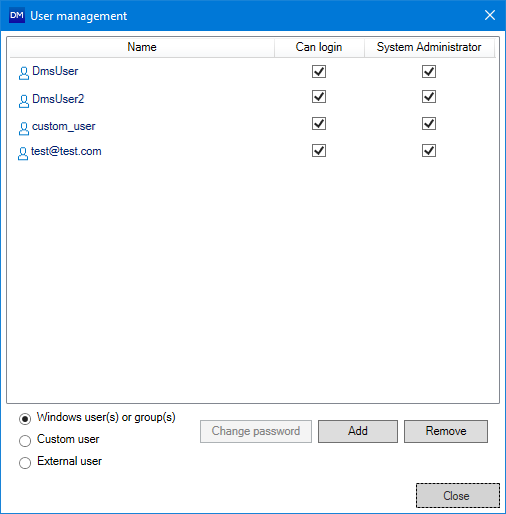
Use the 'User management' form to add and remove users click to enlarge
With the 'User management' form you can add new (or remove) the following users:
- Windows accounts from the Active Directory
- Windows security groups from the Active Directory (only on the full server license)
- Custom users (only available when you have a DMS deployment with the identity server)
- External users (only available when you have an External OIDC IdP set up)
Important
It is recommended to use windows accounts, windows security groups, and external users above using custom users.
On the form, there is an overview of every user or group that has been given access to the DMS server. In this list you can specify the admin accounts.
To add a user
- Click the Manage users button on the DMS Options form to open the User management form.
- On the User management form you are prompted with a list of names.
- At the base of the form, select 'Windows user(s) or groups(s)', 'Custom user' or 'External user', depending on the type of user you want to add.
- Click Add
- For Windows users: The 'Select Users or Groups' dialog pops up. Update 'object types' and 'location' if required, then type the name of the user in the text field and click Check Names. Select the correct name from the list with matching names that shows up click OK. Click OK again on the 'Select Users or Groups dialog'.
- For custom users: type the username and password in the 'New user' dialog and click OK.
- For external users: in the dialog that opens, type the login name that is used to log in using the third party identifier service. Click OK.
- On the User management form, the new user is added to the list.
- System Administrator Users with 'System Administrator' checked have access to all the data on the DMS server.
- Click Close the close the 'User management' form.
Click Apply on the DMS Options form to save the changes you have made.
Change password As System Administrator, you can change the password for all custom users.